Block adult sites on Jio Fiber, Airtel and ACT, and why the router isn't enough on 4G
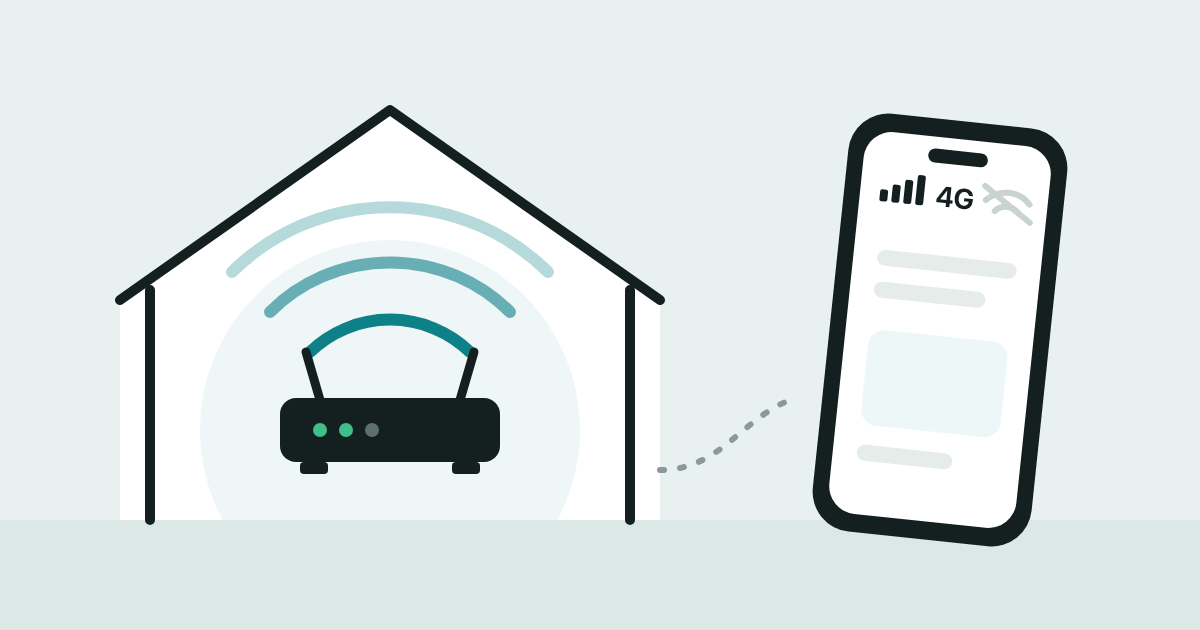
If your child's phone is on your home wi-fi, you can block adult sites at the router. The moment it switches to mobile data, that block stops applying. This post covers what each of the three big home broadband providers documents today, and what to add so the filter goes with the phone.
What your ISP offers
Jio Fiber. We could not find a website-blocking setting on Jio's own help pages. The Jio support page and the JioHome FAQ index list no parental control or content filter. Users do report one in the JioHome app. In a June 2025 community thread, one user describes Parental control, then a device, then "block content" to restrict apps or enter website URLs. A user on a Jio Fiber connection says he cannot find it in his app, and another says it is for AirFiber only. If you use Jio Fiber, check your own JioHome app before relying on it.
Airtel. Airtel Xstream Fiber sells a paid add-on called Secure Internet. Airtel's launch announcement says that with its Child Safe and Study modes "customers can block websites and applications with unwanted, adult/graphic content". It is turned on and off in the Airtel Thanks app. At launch in July 2021 it cost Rs. 99 a month after a 30-day trial, so check the app for the current price. Airtel describes the protection as applying to devices connected through the Xstream Fiber wi-fi.
ACT. ACT's blog on content blocking says a parental control wi-fi router can block adult sites automatically and lets you add sites by hand. The post is general advice. It does not say which ACT router or app has these controls, and we found none on ACT's help and FAQ page. Ask ACT support which settings your router has. The same blog notes that VPNs can get around content filters.
Why the router stops at the front door
A router filter only sees traffic that passes through the router. When your child's phone moves to mobile data, the traffic never touches your home router. The phone has left the home wi-fi, and the router rules stay with the building, not the child. The same happens on a friend's wi-fi, at school, or on a tuition-centre network.
None of this makes the router setting a bad idea. It is a good first layer for the laptops, TV and tablets that stay home.
Adding a layer that travels with the phone
Zaksha puts the filter on the device. There is a native Zaksha app on iPhone and Android, a small agent on Windows, and a configuration profile on Mac. Because the filtering lives on the device, it applies on mobile data, on someone else's wi-fi, and at home.
Zaksha is built to stay on and hard to switch off without you. If filtering is turned off on a device, parents get a WhatsApp message and a push alert. On iPhone the Screen Time passcode does the pinning, so your Apple ID password is the real key. On Windows the admin password is the key. Someone who has those passwords can still remove Zaksha.
Router setup
For families, Zaksha sets up router filtering on request. Tell us about your connection and we check whether we can do it for your home. Set up each phone first either way, so it stays protected on 4G.